What's New
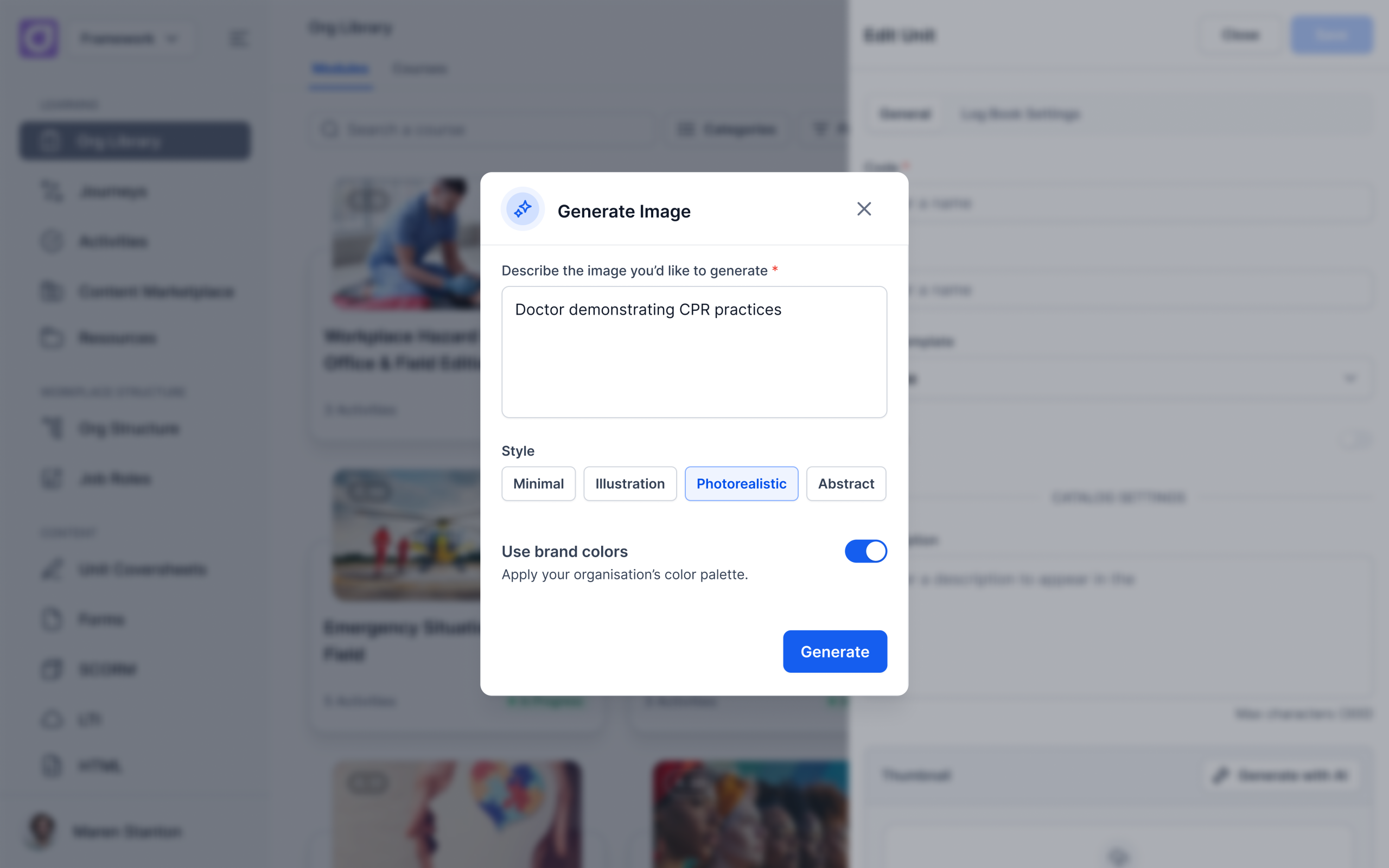
Cloud Assess now includes an AI Image Generator built into the Course Manager. Enter a prompt, choose a style, preview the result, and apply it directly to your qualifications, units, or courses – without leaving the platform.
Who is this for?
This feature is for admins, training managers, L&D leads and anyone responsible for maintaining a professional-looking course catalogue inside Cloud Assess.
It’s useful for teams setting up new courses, refreshing an existing catalogue, or working without access to a graphic designer or stock image library.
Why it matters
A polished course catalogue makes a difference to learner engagement, to how your organisation presents itself, and to the overall quality of your training offering. But sourcing the right images takes time and budget. Finding something suitable, checking licensing, resizing it to fit – it’s a small task that appears on every course.
The AI Image Generator removes that friction entirely. You describe the image you need, choose a style that fits your content, and apply it in seconds. No external tools. No stock library subscriptions. No manual resizing.
The existing upload option stays in place for teams who prefer to use their own images.
Key Features
- Prompt-based image generation – Describe the image you want in plain language – the subject, the setting, the scenario – and AI generates a visual based on your description. You can retry as many times as you need until you have something that fits.
- Style options – Choose from a range of styles (minimal, illustration, photorealistic, or abstract) to match the look and feel of your content and brand.
- Preview before applying – Preview the generated image in context before applying it. If it’s not right, regenerate with a revised prompt or different style.
- Applied directly in Cloud Assess – Images are applied to qualifications, units, or courses directly inside the platform. No downloading, no resizing, no uploading from an external source.
How to get started
The AI Image Generator is available now to all Cloud Assess workspaces.
To use it, navigate to a qualification, unit, or course in the course manager and look for the AI image generation option when adding or updating a cover image.
Keen to learn more?
Book a demo to speak with our sales team or visit our help centre if you are an existing Cloud Assess customer.