What's new
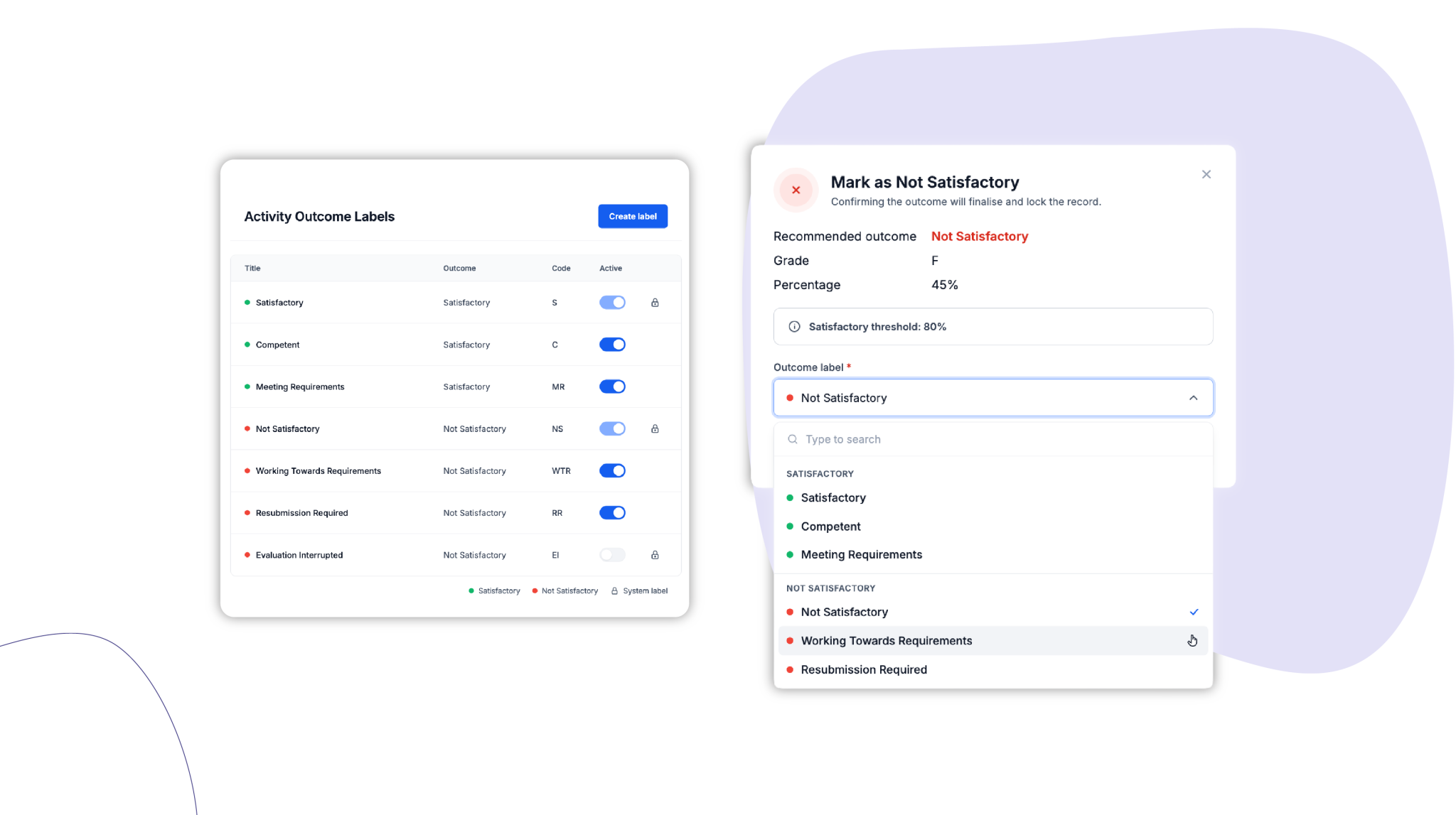
You can now create your own activity outcome labels, such as “Evaluation Interrupted”, so assessors can record exactly what happened when they mark an activity.
Who is this for?
Training and compliance teams who want activity outcomes to show real assessment conditions in their own words.
Why it matters
Not every assessment ends in a clear pass or fail. An evaluation might stop because of an outage, bad weather or an equipment fault. With custom labels, your records show what actually happened, and learners see clear, accurate wording. New attempts, workflows and reporting all keep working as they do now.
Key features
- Up to five custom labels: Create up to five active labels per account, alongside your default outcomes.
- Built on the results you already use: Each label maps to Satisfactory or Not Satisfactory (or your organisation’s chosen terminology). New attempts, workflows, Journeys and reporting carry on as normal.
- Automatic colour coding: Labels take green or red from their result, so outcomes are easy to scan.
- Quick, guided marking: Assessors pick from a grouped dropdown, and your organisation’s labels appear first.
- Clear wording for learners: Learners see the label, giving them context on their outcome.
- Full visibility for staff: Staff see the label next to the result in records and timelines, and can filter record lists by outcome label.
How to get started
- Step 1: As a power user, go to Settings > Data Types > Activity Outcomes.
- Step 2: Create a label. Add a title, pick the outcome it maps to and give it a short code.
- Step 3: Save. The label is available straight away on every activity your assessors mark manually.
Tip: Check each label carefully before anyone uses it. Once a label has been used, it can be switched off but not edited.
For more information, visit the Help Centre or Book a demo today!
Keen to learn more?
Book a demo to speak with our sales team or visit our help centre if you are an existing Cloud Assess customer.