What's new
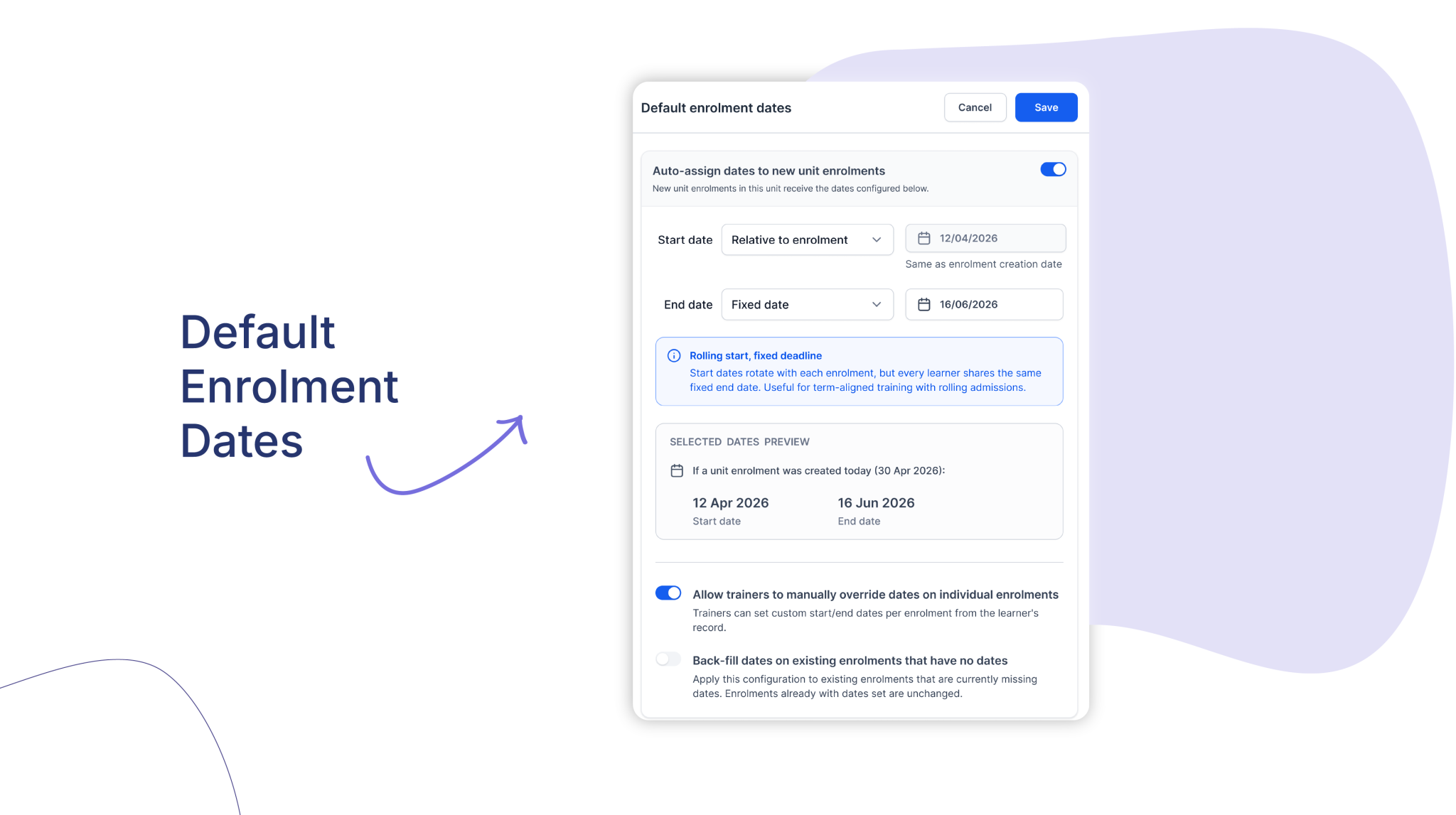
You can now set default start and end dates for each unit in an intake, and every new enrolment applies them automatically.
Who is this for?
Any organisation running calendar-aligned or term-based programmes, and any Admin or Power user managing enrolment dates across large intakes. If you deliver accredited or nationally recognised training, it keeps enrolment records consistent for reporting. If you manage workforce skills and compliance, you get the same control across Modules within Groups.
Why it matters
Dates now stay consistent across a whole cohort from a single setup, which keeps enrolment records accurate and supports clean reporting, including AVETMISS for training providers. Configure once per unit and every new enrolment is ready to go.
Key features
- Three date modes – choose Default, Fixed, or Relative to enrolment independently for the start and end of each unit.
- Live preview – see exactly how dates will resolve before you save.
Bulk configuration – apply the same rule across multiple units in one action. - Optional back-fill – populate existing enrolments that have no dates, leaving those already set untouched.
- Trainer override control – decide whether trainers can adjust dates per learner.
Unit dates column – see at a glance whether a rule is active, paused, or not set.
How to get started
- Go to Intakes and select an intake.
- Open the Units tab.
- Click a unit’s menu and choose Default enrolment dates.
- Turn on the master toggle, then set a mode for the start and end date.
- Check the live preview and select Save. The Unit dates column turns green.
- Enrol your learners as usual. Their dates apply automatically.
For more information visit the Help Centre or Book a demo today!
Keen to learn more?
Book a demo to speak with our sales team or visit our help centre if you are an existing Cloud Assess customer.